Pix Automático in 2026: How to Authorize, Cancel, and Avoid Undue Charges
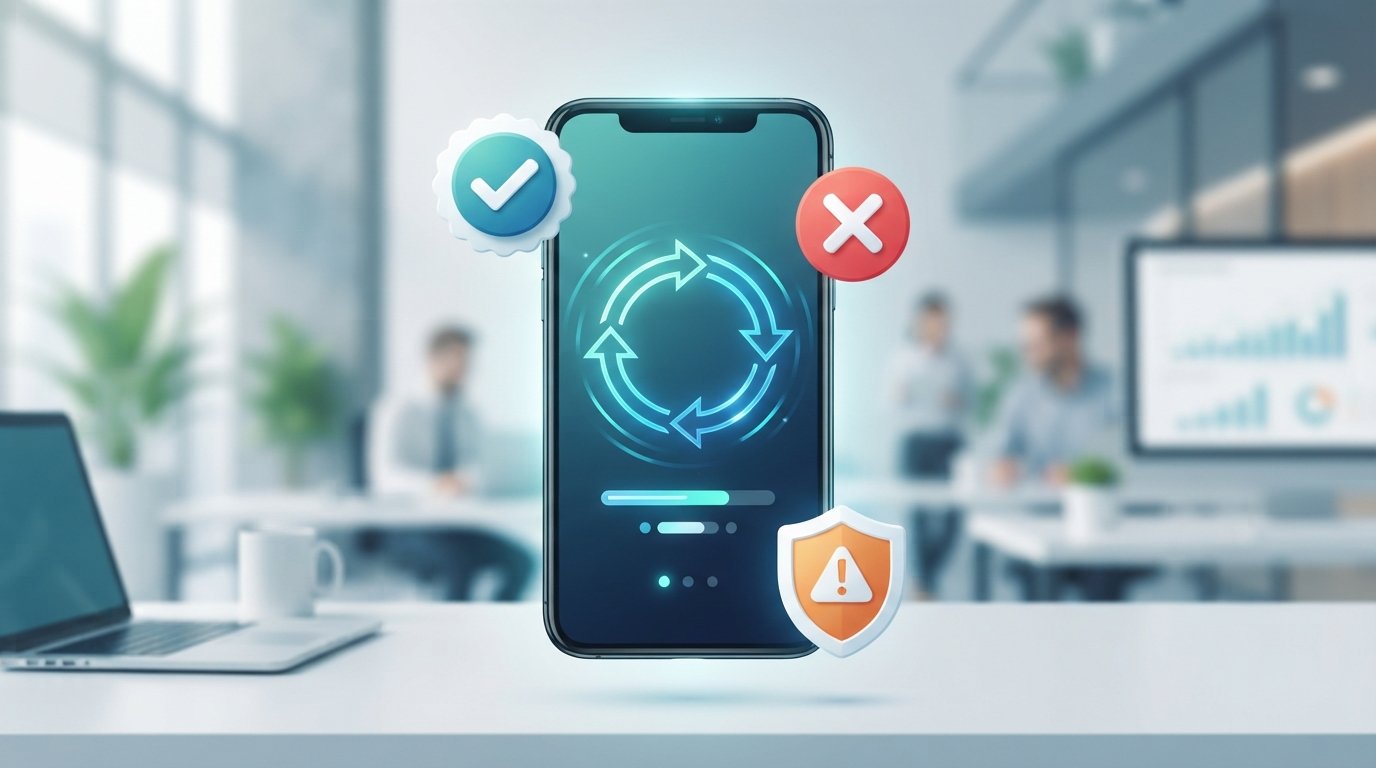
Direct answer: Pix Automático allows a recurring authorization to make Pix payments on predefined dates or within preset windows without the need to confirm each transaction at the moment of payment. To authorize, you must grant explicit consent to your PSP (bank or fintech) — usually through the app — indicating the payee, frequency and limits. To cancel, revoke the authorization in the same app or request cancellation from the PSP, keeping proof.
This guide shows, step by step, how to authorize and cancel Pix Automático, how to minimize the risk of improper charges, what to do in case of insufficient balance and how to verify charges. Statements about procedures and limits reference the Banco Central do Brasil; menus and options in bank interfaces may change and each institution may have its own flows.
How Pix Automático differs from automatic debit
Pix Automático is an authorization for recurring payments via Pix; the user authorizes a payee to trigger transactions without a new confirmation for each payment. Automatic debit is a traditional banking mechanism where the bank debits a checking or savings account directly according to the creditor’s instructions. Operational rules about authorizations and cancellations are set out by the Banco Central (BCB).
Practical steps to authorize a Pix Automático
- Open your PSP’s app (bank or fintech) and find the Pix or recurring payments section. The wording may vary by institution.
- Select the option “Authorize Pix Automático” or a similar label. Verify the payee identity: name/business name and Pix key.
- Specify frequency (e.g., monthly), start date and, when allowed, end date or number of installments. If available, set a maximum limit per transaction and per period.
- Read the authorization summary and the contract, then expressly authorize. The PSP must record the consent and provide proof.
- Save or store the authorization confirmation and the payee’s details. You may revoke at any time following your PSP’s procedure.
How to cancel or revoke the authorization
- Log into the same app and locate the list of authorizations or recurring payments.
- Request revocation/cancellation of the authorization. Confirm the operation and note the protocol number or capture the screen.
- If the app does not allow proper cancellation, contact the PSP’s support via chat, e-mail or phone and request cancellation in writing.
- After cancellation, monitor your statements and future charges for at least one billing cycle to ensure no unauthorized debits occurred.
What to do in case of an improper charge
- Immediately dispute the charge with the PSP that executed the debit — provide the protocol, receipts and a description of the issue.
- If the PSP does not resolve it, file a complaint with the institution’s ombudsman channel and, if necessary, with the Banco Central (see BCB guidance).
- Keep all communications and evidence. The analysis procedure follows the PSP’s and the BCB’s rules; always quote the protocol number.
Insufficient balance and scheduled payments
If there is not enough balance on the payment date, the Pix may not complete. Some institutions allow automatic retries or offer alternatives; check with your PSP. In case of failure due to insufficient funds, the payer is responsible for providing funds, but reprocessing rules vary among PSPs — consult the Banco Central and your PSP’s documentation.
Common errors and how to avoid them
- Authorizing without confirming the key and payee: always verify the name/business name and the Pix key.
- Failing to save the authorization confirmation: save the document or take a screenshot.
- Not setting limits: when possible, set a maximum amount and frequency.
- Ignoring account statements: review your monthly statement to identify unauthorized charges.
Quick checklist before authorizing
| Check | Done? |
|---|---|
| Confirm payee name/business name | ___ |
| Confirm correct Pix key | ___ |
| Set frequency and start/end date | ___ |
| Set per-transaction or periodic limit (if possible) | ___ |
| Saved authorization confirmation | ___ |
Quick comparison: Pix Automático vs Automatic Debit
| Feature | Pix Automático | Automatic Debit |
|---|---|---|
| Payment method | Pix (instant) | Traditional account debit |
| Authorization | Explicit consent to the PSP for recurring authorizations | Debit order based on agreement with the bank |
| Speed | Instant when available | Depends on bank processing |
| Cancellation | Revocation via app/PSP | Cancellation through the bank or creditor, per agreement |
Frequently asked questions
Can I demand an immediate refund for an improper charge? It depends on the PSP’s analysis. Dispute the debit with the PSP and keep records. If necessary, use the Banco Central’s regulatory channels.
Can Pix Automático withdraw from my account without limit? No; you authorize the conditions (frequency/limit) and may revoke consent. However, specific procedures and timing limits depend on the PSP — check the app.
How do I prove I revoked the authorization? Save the cancellation confirmation or the protocol number generated by the PSP’s support.
Limits and risks
The main risk is improper charges due to error or fraud. Mitigate by setting limits, verifying the payee and saving confirmations. Reputation and security practices vary by PSP; always confirm procedures, since menus, limits and flows can change with updates from Banco Central or your PSP.
Operational rules about Pix Automático are published by the Banco Central do Brasil (BCB).
Sources and update
Information is based on guidance and rules from the Banco Central do Brasil. Check the official pages for details and updates:
- Pix Automático — Banco Central do Brasil
- Pix Automático — FAQ for participants (PDF) — Banco Central
This content is informative and does not replace individualized professional advice.

Michael Rowan is a dedicated writer and researcher specializing in Personal Finance and Investments. With a passion for helping individuals make smarter financial decisions, he creates informative and practical content designed to simplify complex financial topics.